• Welcome to AppraisersForum.com, the premier online  community for the discussion of real estate appraisal. Register a free account to be able to post and unlock additional forums and features.

Pegged my Windows 10 PC this afternoon

I've only got one more problem to deal with, and at this point, I am stumped. I have all my case fans plugged directly into the Seasonic PSU, and none of them work. Very bizarre.
AI Overview –

Dynamically controlled PC case fans may not work due to incorrect power or fan header connections, faulty motherboard settings, issues with the fan controller or its software, or a lack of sufficient voltage to start the fans. To fix this, check all connections, verify motherboard settings in the BIOS, update or reinstall controller software, and ensure fans have enough power to spin by adjusting settings or plugging directly into the motherboard.

Troubleshooting steps

1. Check physical connections
  • Inspect all cables: Ensure the fan's power cables are securely connected to the correct headers on your motherboard or a dedicated fan controller.
  • Verify controller connections: If using a separate fan controller, check that it is properly connected to both the motherboard (for data) and the power supply (for power, often via SATA).
  • Check for bent pins: Look for bent pins in the fan connectors and fan headers, as this can prevent a proper connection.
  • Try a different port: If the fan is plugged into a motherboard header, try a different one to rule out a faulty header.
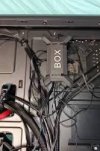
This video explains why your PC may not recognize the fans:
Related video thumbnail
00:57
1762540781426.png
violett_shadow
Reddit • Oct 24, 2023

2. Adjust motherboard and BIOS settings
  • Change fan control mode: In your BIOS, set the fan control mode to a less restrictive setting like "Manual" or "Software Controlled" instead of "Auto".
  • Set a minimum speed: Set a minimum fan speed or a fan curve that ensures the fans have enough voltage to start spinning, especially when idle.
  • Disable conflicting options: Ensure any aggressive power-saving options or other conflicting fan control settings are disabled in the BIOS.

3. Address software and controller issues
  • Update software: If you are using specific software for your fans (e.g., iCUE, L-Connect, or a motherboard utility), update it to the latest version.
  • Reinstall software: Uninstall and then reinstall the fan control software. You may also need to uninstall the companion SDK if present.
  • Update firmware: Some fan controllers require a separate utility to update their firmware. Check the manufacturer's website for a dedicated firmware update tool.
  • Disable other RGB software: If multiple RGB/fan control programs are running, one might be conflicting with another. Try uninstalling all but one.

4. Connect directly to the motherboard
  • If the fans are connected to a proprietary controller that isn't working, unplug them from the controller and connect them directly to the motherboard's fan headers. This can help you determine if the controller is the source of the problem.

5. Consider a faulty component
  • If a single fan is not working while others are, the fan itself may be faulty.
  • If multiple fans stop working suddenly, it could be a problem with the fan controller hub or a power management issue on the motherboard.

(here is the best comment)

The system is not recognizing the fans, because absent of the fan control wire being plugged in, the fans are essentially not plugged in. If you only have the JST port on the controller, you should have a JST to PWM converter cable. If not, they are available for purchase online...
 
Last edited:
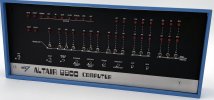
I'll be connecting my Altair 8800 to the Blackwell Ultra I have on order and keep them in my liquid nitrogen freezer to work on the new UAD 3.6. I should be able to just say, "Complete Report on 123 Elm Street" and the report will be delivered within two hours.

8080.jpg
 
I'll be connecting my Altair 8800 to the Blackwell Ultra I have on order and keep them in my liquid nitrogen freezer to work on the new UAD 3.6. I should be able to just say, "Complete Report on 123 Elm Street" and it should be done within two hours.

View attachment 104634
If Bert could have such a computer system instead of MARs, he would be so rich.
 
AI Overview –

Dynamically controlled PC case fans may not work due to incorrect power or fan header connections, faulty motherboard settings, issues with the fan controller or its software, or a lack of sufficient voltage to start the fans. To fix this, check all connections, verify motherboard settings in the BIOS, update or reinstall controller software, and ensure fans have enough power to spin by adjusting settings or plugging directly into the motherboard.

Troubleshooting steps

1. Check physical connections
  • Inspect all cables: Ensure the fan's power cables are securely connected to the correct headers on your motherboard or a dedicated fan controller.
  • Verify controller connections: If using a separate fan controller, check that it is properly connected to both the motherboard (for data) and the power supply (for power, often via SATA).
  • Check for bent pins: Look for bent pins in the fan connectors and fan headers, as this can prevent a proper connection.
  • Try a different port: If the fan is plugged into a motherboard header, try a different one to rule out a faulty header.
This video explains why your PC may not recognize the fans:
View attachment 104633
00:57
View attachment 104632
violett_shadow
Reddit • Oct 24, 2023

2. Adjust motherboard and BIOS settings
  • Change fan control mode: In your BIOS, set the fan control mode to a less restrictive setting like "Manual" or "Software Controlled" instead of "Auto".
  • Set a minimum speed: Set a minimum fan speed or a fan curve that ensures the fans have enough voltage to start spinning, especially when idle.
  • Disable conflicting options: Ensure any aggressive power-saving options or other conflicting fan control settings are disabled in the BIOS.

3. Address software and controller issues
  • Update software: If you are using specific software for your fans (e.g., iCUE, L-Connect, or a motherboard utility), update it to the latest version.
  • Reinstall software: Uninstall and then reinstall the fan control software. You may also need to uninstall the companion SDK if present.
  • Update firmware: Some fan controllers require a separate utility to update their firmware. Check the manufacturer's website for a dedicated firmware update tool.
  • Disable other RGB software: If multiple RGB/fan control programs are running, one might be conflicting with another. Try uninstalling all but one.

4. Connect directly to the motherboard
  • If the fans are connected to a proprietary controller that isn't working, unplug them from the controller and connect them directly to the motherboard's fan headers. This can help you determine if the controller is the source of the problem.

5. Consider a faulty component
  • If a single fan is not working while others are, the fan itself may be faulty.
  • If multiple fans stop working suddenly, it could be a problem with the fan controller hub or a power management issue on the motherboard.

(here is the best comment)

The system is not recognizing the fans, because absent of the fan control wire being plugged in, the fans are essentially not plugged in. If you only have the JST port on the controller, you should have a JST to PWM converter cable. If not, they are available for purchase online...
I've already been through all that. The existing setup worked fine before I changed components. I had everything plugged into the PSU before, which bypasses the motherboard and BIOS. The little suckers should be screaming, but they aren't. I don't have a clue. I've moved on to the next headache. Now Microsoft doesn't recognise my email address, even though I am logged in with it. You can't make this chit up.
 
Can't figure out why appraisers need such an advanced computer system for our purposes.
Unless they like to play video games.
 
I've already been through all that. The existing setup worked fine before I changed components. I had everything plugged into the PSU before, which bypasses the motherboard and BIOS. The little suckers should be screaming, but they aren't. I don't have a clue. I've moved on to the next headache. Now Microsoft doesn't recognise my email address, even though I am logged in with it. You can't make this chit up.
Are you telling me that that the previous set up had all of your fans blowing full power all of the time? I'd have to put that in a closet somewhere. Regardless, here's what you're dealing with now, I suspect.

AI Overview

Microsoft's use of a Trusted Platform Module (TPM)
involves a hardware-based security processor to protect data and ensure system integrity through features like BitLocker, Windows Hello, and secure boot. A TPM can be a discrete chip on the motherboard or integrated into a processor, and Microsoft's newer operating systems like Windows 11 rely heavily on TPM 2.0 to secure identity, data, and boot processes.

How Microsoft uses TPM
  • Data protection: TPM can generate, store, and use cryptographic keys for encryption, making it difficult for hackers to access sensitive information. BitLocker is a key example.
  • Identity and access: Windows Hello uses TPM to securely store biometric data and PINs for signing in.
  • System integrity: TPM helps ensure the system is secure from the moment it starts up by verifying the integrity of the boot process and preventing malicious software from launching.
  • Secure storage: TPM protects private keys and certificates, preventing them from being exported from the chip.

TPM types and requirements
  • TPM 2.0: Microsoft requires TPM 2.0 for Windows 11 due to its enhanced security features.
  • Implementations: TPMs can be implemented as a physical chip on the motherboard (discrete) or as part of the main processor (integrated).
  • Microsoft Pluton: Microsoft Pluton is a security processor designed to provide TPM 2.0 functionality.

What you need to do
  • Check your PC: Most modern PCs have a TPM, but it may need to be enabled in the BIOS/UEFI settings.
  • Enable if necessary: You can check and enable TPM 2.0 through the Windows Security app in Settings or by following your PC manufacturer's instructions.
  • Automatic management: With Windows 10 and 11, the operating system automatically handles most TPM initialization and ownership, so you generally don't need to use the TPM management console (tpm.msc).
 
I've already been through all that. The existing setup worked fine before I changed components. I had everything plugged into the PSU before, which bypasses the motherboard and BIOS. The little suckers should be screaming, but they aren't. I don't have a clue. I've moved on to the next headache. Now Microsoft doesn't recognise my email address, even though I am logged in with it. You can't make this chit up.
And to make your life even simpler…

 
Now Microsoft doesn't recognise my email address, even though I am logged in with it. You can't make this chit up.
And finally…

AI Overview

If Windows does not recognize your system after hardware changes, you may need to reactivate Windows using the

Activation Troubleshooter, which can be found in the "Update & Security" or "Troubleshoot" settings. If that doesn't work, you can also try booting from Windows installation media to run Startup Repair or using command-line tools like slmgr.vbs to reactivate the product key.
1. Use the Activation Troubleshooter
  • Connect your computer to the internet.
  • Go to Settings > Update & Security > Activation. If you don't see the activation troubleshooter, navigate to Troubleshoot > Other troubleshooters.
  • Select "Troubleshoot" under Windows Update or Activation.
  • If you have a digital license, the troubleshooter can often reactivate Windows after a hardware change.
2. Use command-line tools (if you have a product key)

  • Open an administrator Command Prompt.
  • Uninstall the current product key by typing slmgr.vbs /upk and pressing Enter.
  • Install a new product key by typing slmgr.vbs /ipk followed by your product key, and then press Enter.
  • Try to activate online by typing slmgr.vbs /ato and pressing Enter.
3. Boot from Windows Installation Media

  • Create a Windows installation USB or DVD on another computer.
  • Insert the media and restart your computer, booting from the installation drive.
  • Select "Repair your computer" and then go to "Troubleshoot".
  • Choose "Startup Repair" and let it run. It may be able to fix the boot problem.
4. Other potential solutions

  • Check BIOS/UEFI settings: Ensure the boot order is set to your primary hard drive.
  • Disconnect external hardware: Unplug any unnecessary devices like USB drives, printers, or external hard drives.
  • Contact support: If the above steps fail, contact Microsoft support for assistance. You may need to transfer a retail license manually.
 
Are you telling me that that the previous set up had all of your fans blowing full power all of the time? I'd have to put that in a closet somewhere. Regardless, here's what you're dealing with now, I suspect.

AI Overview

Microsoft's use of a Trusted Platform Module (TPM)
involves a hardware-based security processor to protect data and ensure system integrity through features like BitLocker, Windows Hello, and secure boot. A TPM can be a discrete chip on the motherboard or integrated into a processor, and Microsoft's newer operating systems like Windows 11 rely heavily on TPM 2.0 to secure identity, data, and boot processes.

How Microsoft uses TPM
  • Data protection: TPM can generate, store, and use cryptographic keys for encryption, making it difficult for hackers to access sensitive information. BitLocker is a key example.
  • Identity and access: Windows Hello uses TPM to securely store biometric data and PINs for signing in.
  • System integrity: TPM helps ensure the system is secure from the moment it starts up by verifying the integrity of the boot process and preventing malicious software from launching.
  • Secure storage: TPM protects private keys and certificates, preventing them from being exported from the chip.

TPM types and requirements
  • TPM 2.0: Microsoft requires TPM 2.0 for Windows 11 due to its enhanced security features.
  • Implementations: TPMs can be implemented as a physical chip on the motherboard (discrete) or as part of the main processor (integrated).
  • Microsoft Pluton: Microsoft Pluton is a security processor designed to provide TPM 2.0 functionality.

What you need to do
  • Check your PC: Most modern PCs have a TPM, but it may need to be enabled in the BIOS/UEFI settings.
  • Enable if necessary: You can check and enable TPM 2.0 through the Windows Security app in Settings or by following your PC manufacturer's instructions.
  • Automatic management: With Windows 10 and 11, the operating system automatically handles most TPM initialization and ownership, so you generally don't need to use the TPM management console (tpm.msc).
These are Noctua fans; they are very quiet. The fan issue is unrelated to the CPU's security chipset.
 
Find a Real Estate Appraiser - Enter Zip Code

Copyright © 2000-, AppraisersForum.com, All Rights Reserved
AppraisersForum.com is proudly hosted by the folks at
AppraiserSites.com
Back
Top